



Reader Summary
Enterprises across industry are struggling with fragmented AI integration and connectivity from CRMs to SaaS apps. Siloed tools, redundant work, compliance issues, and unreliable agents have delayed the realization of AI’s potential so this blog explores scalable AI solution to preserve companies’ competitive edge. Azure Logic Apps, governed MCP tools through API Center, enable organizations to securely expose existing enterprise workflows as AI-ready tools. By leveraging built-in security, scalability, and reusability, companies can rapidly integrate AI agents into their operations without building new APIs or compromising governance. This is especially beneficial to organizations that operate in highly regulated industries that require innovation with compliance in mind.
Benefits to MCP-based AI Optimization
- Accelerated AI Integration: MCP servers allow rapid deployment of AI capabilities by reusing existing workflows, reducing time-to-value.
- Compliance and Reduced Risk: All AI tool access is governed by existing enterprise security policies.
- Cost Efficiency: Logic Apps configured as MCP servers avoid the expense and complexity of building and maintaining custom APIs, streamlining operations.
- ROI on AI Investments: One MCP server can support multiple agents and applications, maximizing success of integration efforts.
- Operational Transparency: Full logging and auditing capabilities provide visibility into workflow execution and AI interactions.
Logic Apps MCP Solves what Traditional APIs Can’t
With traditional APIs, allowing AI agents to access business workflows often means choosing between various security risks. Each tool requires its own authentication, credentials, and maintenance, resulting in a fragile and sprawling infrastructure.
Logic Apps MCP servers change the game. Instead of building new APIs, reuse your existing Logic App workflows and expose them as secure AI tools. All access flows through Azure AD and Easy Auth, so existing security policies automatically apply. This transformation from disparately managed APIs to governed enterprise workflows optimizes your AI investment by making assets reusable and more secure.
Approaches: API Center vs Manual host.json
There are two primary approaches to expose Logic Apps as MCP servers for Copilot Studio:
- API Center wizard
- Quickly spins up an MCP server backed by a single connector and action.
- Best for simple, focused tools, but limited to one connector per MCP server instance.
- Manual host.json configuration(Logic App Standard)
- Enables MCP at the logic app level, so multiple workflows in the same Standard Logic App are exposed as tools through one MCP endpoint.
- Best when you want a single MCP server hosting multiple tools.
For multi-tool, multi-workflow scenarios, the manual host.json method is the better long-term pattern.
Steps: Enable MCP on a Logic App (Manual Method)
1. Create Logic App workflows
- Use Logic App (Standard), not Consumption. MCP is supported on Standard single-tenant Logic Apps.
- Create a stateful workflow with an HTTP trigger and a clear JSON schema, then add actions such as fetching data from SharePoint, sending email, or posting to Teams.
Each of these workflows will become an MCP tool once MCP is enabled.
2. Edit host.json file via Kudu editor
- In the Azure portal, open your Logic App (Standard).
- Go toDevelopment Tools → Advanced Tools → Goto open Kudu.
- In Kudu, navigate to site → wwwroot.
- Find host.json and select the edit (pencil) icon.
Replace the contents with:
{
  "version": "2.0",
  "extensionBundle": {
    "id": "Microsoft.Azure.Functions.ExtensionBundle.Workflows",
    "version": "[1.*, 2.0.0)"
  },
  "extensions": {
    "workflow": {
      "McpServerEndpoints": {
        "enable": true,
        "authentication": {
          "type": "anonymous"
        }
      }
    }
  }
}
Security note: ‘type’: “anonymous “is for dev/test only. For production, set ‘type’ to”oauth2” or “ApiKey” and secure the Logic App with Easy Auth or API key authentication.
Save the file, then restart the Logic App and wait a minute for the settings to reflect.
3. Confirm the MCP endpoint
Once restarted, your Logic App exposes a single MCP server endpoint:
https:///<your-logicapp-name>.azurewebsites.net/api/mcp
All stateful workflows in that Logic App are now discoverable as MCP tools through this endpoint.
Connect the MCP Server to Copilot Studio
In Copilot Studio, connect your Logic App MCP server as a Model Context Protocol tool:
- Open Copilot Studio → select your agent.
- Go to the Tools page.
- Select Add a tool → Model Context Protocol.
- Choose Add existing MCP server (or Create new, depending on UI wording) and provide:
- Name: MyLogicAppsMCP (or another descriptive name).
- Server URL: https://<your-logicapp-name>.azurewebsites.net/api/mcp.
- Authentication:
- None for local/dev testing.
- Key for API key.
- OAuth 2.0 for production with Easy Auth and Entra ID.
- Save the configuration.
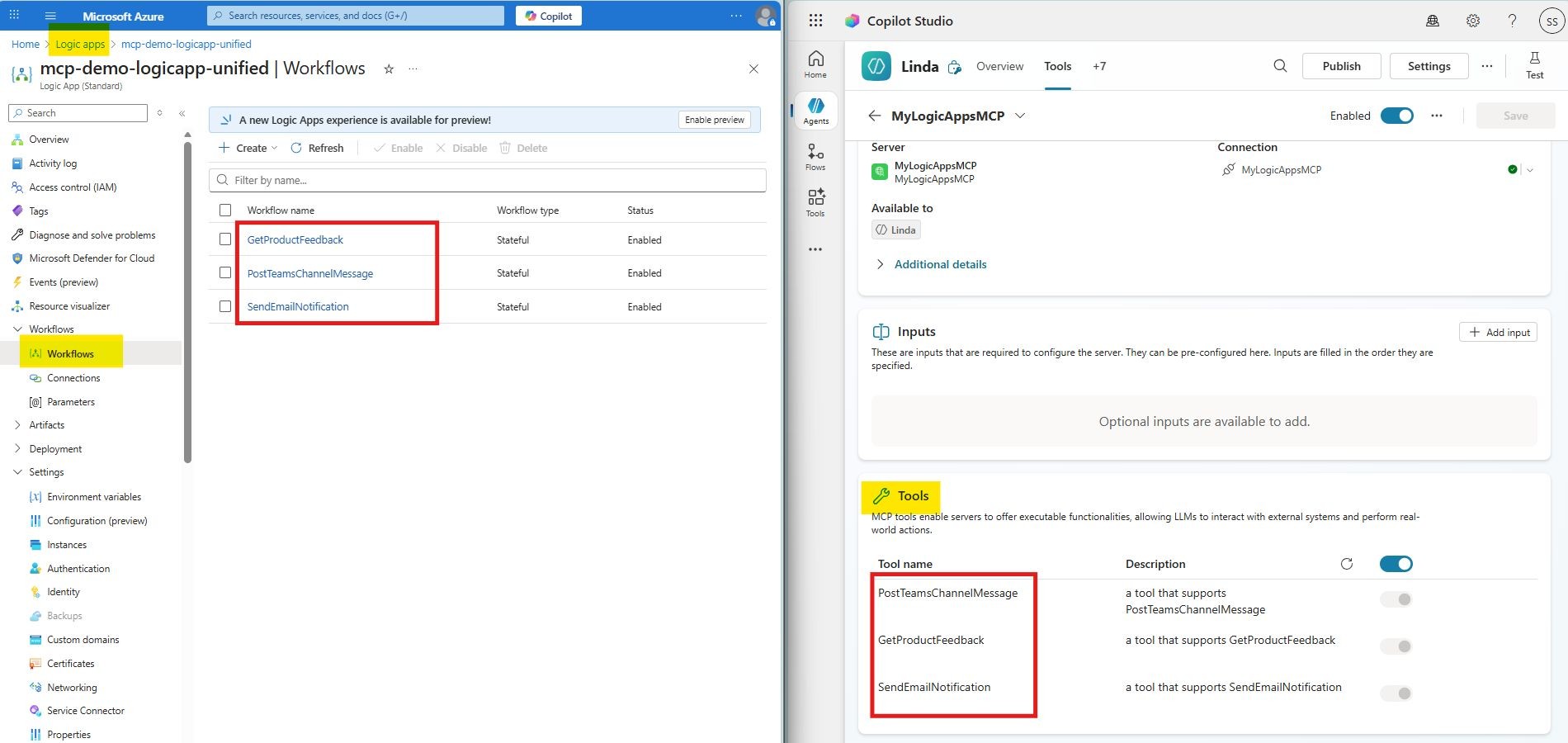
Copilot Studio then connects to the MCP endpoint and discovers your tools (for example: GetProductFeedback, SendEmailNotification, PostTeamsChannelMessage) automatically from your configured workflows. Your agent can now invoke these tools in conversation flows to query data, send notifications, and orchestrate workflows.
Testing Your MCP Server
You can test and validate MCP behavior in multiple ways:
- Visual Studio Code / MCP client: Use an MCP-aware client to list tools and invoke them against the MCP endpoint.
- Copilot Studio agent: Interact with the agent, verify tools are discovered under the Tools page, and test flows that call your Logic App–backed tools.
This confirms both connectivity and tool schemas.
Production Deployment Best Practices
- Enable Easy Auth (App Service Authentication)to enforce OAuth 2.0 with Entra ID and align with enterprise security policies.
- Enable Application Insights for end-to-end monitoring, logging, and alerting on workflow executions and MCP calls.
- Use managed identities and Azure Key Vault to secure connector credentials and secrets.
- Document each tool with its name, parameters, outputs, and usage examples so other teams can safely reuse them.
Tech Takeaways
Logic Apps as MCP servers represent a paradigm shift: your existing enterprise workflows become secure, discoverable AI tools—without bespoke APIs, extra integration layers, or new infrastructure. Build once, expose via MCP, and let your agents reuse that capability across the enterprise.
- Reuse Existing Workflows: Engineers can expose current Logic App workflows as MCP tools, minimizing the need for new API development.
- Security First: Always use OAuth 2.0 or API key authentication for production deployments, and leverage Easy Auth for seamless integration with enterprise security policies.
- Scalable Architecture: The manual host.json approach allows multiple workflows to be managed under a single MCP endpoint, supporting complex, multi-tool scenarios.
- Monitoring and Auditing: Integrate Application Insights for comprehensive monitoring and logging, ensuring traceability and reliability.
Logic Apps as MCP servers represent a paradigm shift: your existing enterprise workflows become secure, discoverable AI tools that scale and add value.
Are you ready to optimize your tech posture and increase ROI for your organization? Contact us to schedule a consultation today.